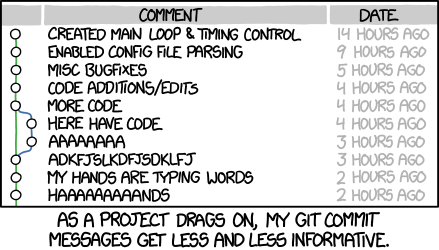
Revision control tracks changes. The git version control system was created by Linus Torvalds for managing the Linux kernel source code. Git does not use a central repository like Subversion but each user maintains a complete separate distributed repository which can be merge anytime with the main repository. Also, Git tracks content changes.
When you have successfully completed this assignment you will be able to:
# yum install git
Use your real name and school email address. You'll use this information to up load the assignment. These settings apply to all repositories under your home directory.
$ git config --global user.name "Tux Penguin"
$ git config --global user.email "tux.penguin@maricopa.edu"
Set a configuration for a specific repository by leaving out the --global option..
$ cd ~/temp/CIS
$ git config user.name "Tux Penguin"
$ git config user.email "tux@iceberg.com"
$ git config -l
$ git config --unset --global user.email
If this variable is set than your favorite editor will be used to composed the commit message.
$ export GIT_EDITOR=vim
Create a new directory for scripts for this class. Git will create a hidden .git sub-directory in the current directory where the files you wish to track are contained.
$ mkdir ~/git
$ cd ~/git
$ git init cis239dl
Initialized empty Git repository in /home/tux/git/cis239dl/.git/
$ cd ~/git/cis238dl
Even if the directory already contains files the files need to be explicitly added to the Git repository.
$ touch file1
$ git add file1
The file is ready to be added to the repository at the next commit.
$ git status
# On branch master
#
# Initial commit
#
# Changes to be committed:
#   (use "git rm --cached <file>..." to unstage)
#
#       new file:   file1
#
Commit the changes along with a message.
$ git commit -m"new empty file" file1
[master (root-commit) 46808dc] new empty file
1 file changed, 0 insertions(+), 0 deletions(-)
create mode 100644 file1
Make a change to file1 and then check the status.
$ echo Hello World > file1

$ git status

# On branch master
# Changes not staged for commit:
#   (use "git add <file>..." to update what will be committed)
#   (use "git checkout -- <file>..." to discard changes in working directory)
#
#       modified:   file1
#
no changes added to commit (use "git add" and/or "git commit -a")
$ git commit -m"added text" -a
[master ca3133a] added text
1 file changed, 1 insertion(+)
If the GIT_EDITOR variable is set then just.
$ git commit file1
You can view a log of changes committed with this command.
$ git log

commit ca3133a950116371c41450693140c45acd6590e8
Author: Tux Penguin <tux@maricopa.edu>
Date:   Sun Sep 28 08:52:17 2014 -0700

added text

commit 46808dcf3f80411b73fbd23354027762e194e03e
Author: Tux Penguin <tux@maricopa.edu>
Date:   Sun Sep 28 08:42:39 2014 -0700

new empty file
Create a new branch.
$ git branch branch1 # this is the new development branch
tux@linux-s1kl:~/git/cis239dl$ git status
# On branch master
nothing to commit, working directory clean
tux@linux-s1kl:~/git/cis239dl$ git checkout branch1
Switched to branch 'branch1'
tux@linux-s1kl:~/git/cis239dl$
Changes only appear on file1 on branch1.
$ echo Goodbye World >> file1
tux@linux-s1kl:~/git/cis239dl$ git commit -m"append new text" file1
[branch1 f202e18] appened new text
1 file changed, 1 insertion(+)
Use cat to show the changes to file1 in branch1.
$ cat file1
Hello World
Goodbye Wold
This shows the latest changes to a branch.
$ git show-branch branch1
[branch1] Renamed newfile to file2
Switch back to the master branch to show that you have two versions of file1.
$ git checkout master
$ cat file1
Hello World
$ git branch -m <oldname> <newname>
First make sure the branch you wish to delete is not current.
$ git checkout master
$ git branch -d branch1
If the branch has commits that have not been merged you won't be able to delete the branch until the commits are merged.
$ git checkout master
$ git merge branch1
Create a new empty file.
$ touch newfile
No try to rename the file with Git.
$ git mv newfile file2
fatal: not under version control, source=newfile, destination=file2
The file must be added to Git repository before it can be moved.
$ git add newfile
Now the file can be renamed.
$ git mv newfile file2
The status option shows the ready to be committed..
$ git status
# On branch master
# Changes to be committed:
#   (use "git reset HEAD <file>..." to unstage)
#
#       new file:   file2
#
Commit the change.
$ git commit -a
[master 214f078] Renamed newfile to file2
1 file changed, 0 insertions(+), 0 deletions(-)
create mode 100644 file2
You can a Git repository as a backuop.
$ git clone CIS239DL/ CIS
Cloning into 'CIS'...
done.
Let's merge the changes on the development branch into the master branch.
First set a remote repository to use. I've set up a GitHub repo for this class.
$ git remote add origin https://github.com/dkibbe/cis239dl.git
$ git remote -v
origin  https://github.com/dkibbe/cis239dl.git (fetch)
origin  https://github.com/dkibbe/cis239dl.git (push)
Now you can push changes to GitHub
$ echo "Firstname Lastname" > first.last-initial
$ git push -u origin master
In your local repository create a text file containing just your first and last name and is named for your first name plus your last initial.
Example:
$ echo "Tux Penguin" > tux.p
Upload this file and only this file to GitHub. You may need to remove other files you have created from the local repository.
The private key to upload is listed under Resources. The pashphases will be given you in class.

This work is licensed under a Creative Commons Attribution-ShareAlike 3.0 Unported License.